# QuickBooks Online Plugin

This article will walk you through setting up the QuickBooks Online plugin.

***

### Migrate to OAuth 2.0 <a href="#quickbooksonlineplugin-migratetooauth2.0" id="quickbooksonlineplugin-migratetooauth2.0"></a>

{% hint style="danger" %}
**As of December 17th 2019, All existing Quickbook Users need to Migrate to OAuth 2.0. Below are the steps needed to take to Migrate to OAuth 2.0**
{% endhint %}

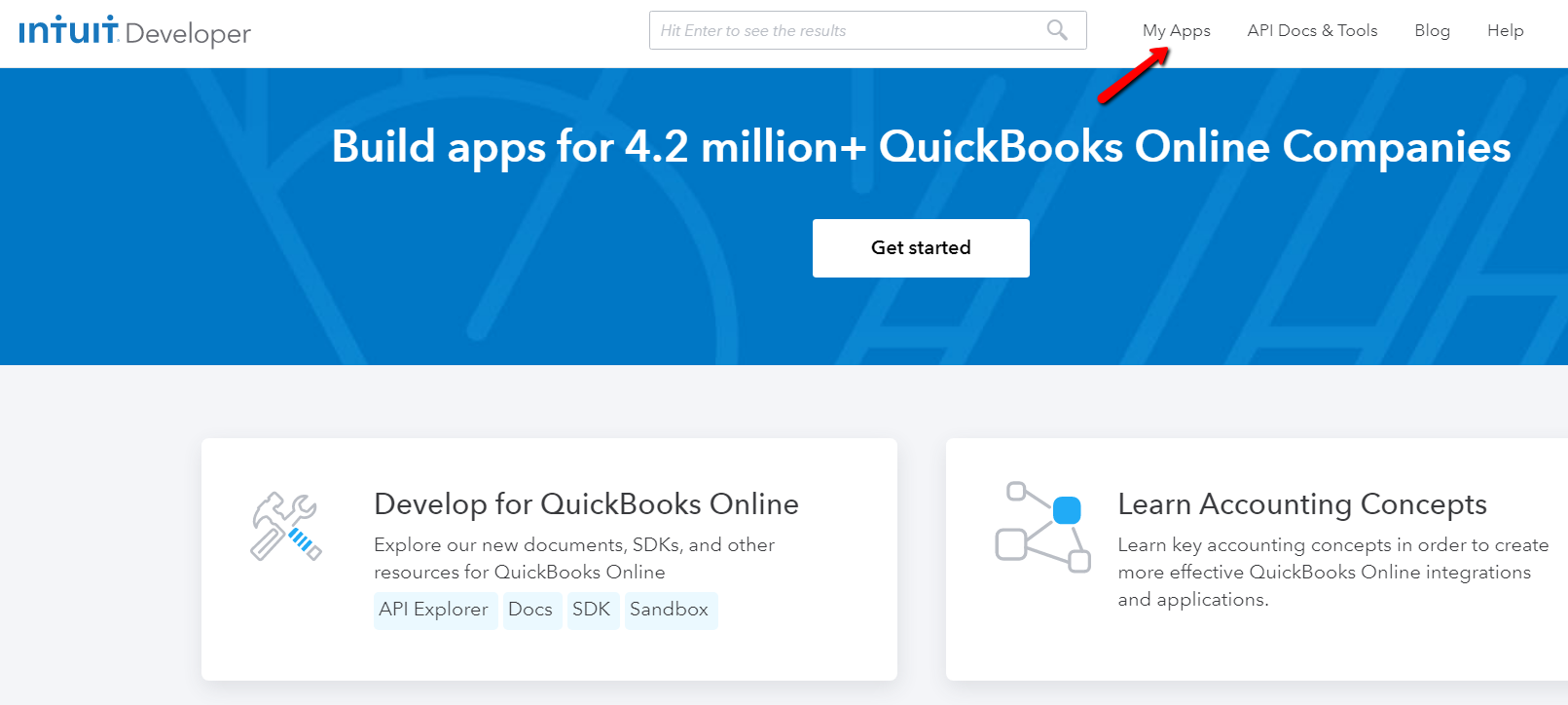
* [Log into your intuit developer account](https://developer.intuit.com/app/developer/homepage) and click **My Apps**

<figure><img src="https://3790748257-files.gitbook.io/~/files/v0/b/gitbook-x-prod.appspot.com/o/spaces%2FT43PzcNjyZtWby9yrGd3%2Fuploads%2FO7LM6oHs0RHPPEQhlV92%2Fimage.png?alt=media&#x26;token=c882e4d4-31b3-48e9-894c-52e6b12ae7e5" alt=""><figcaption></figcaption></figure>

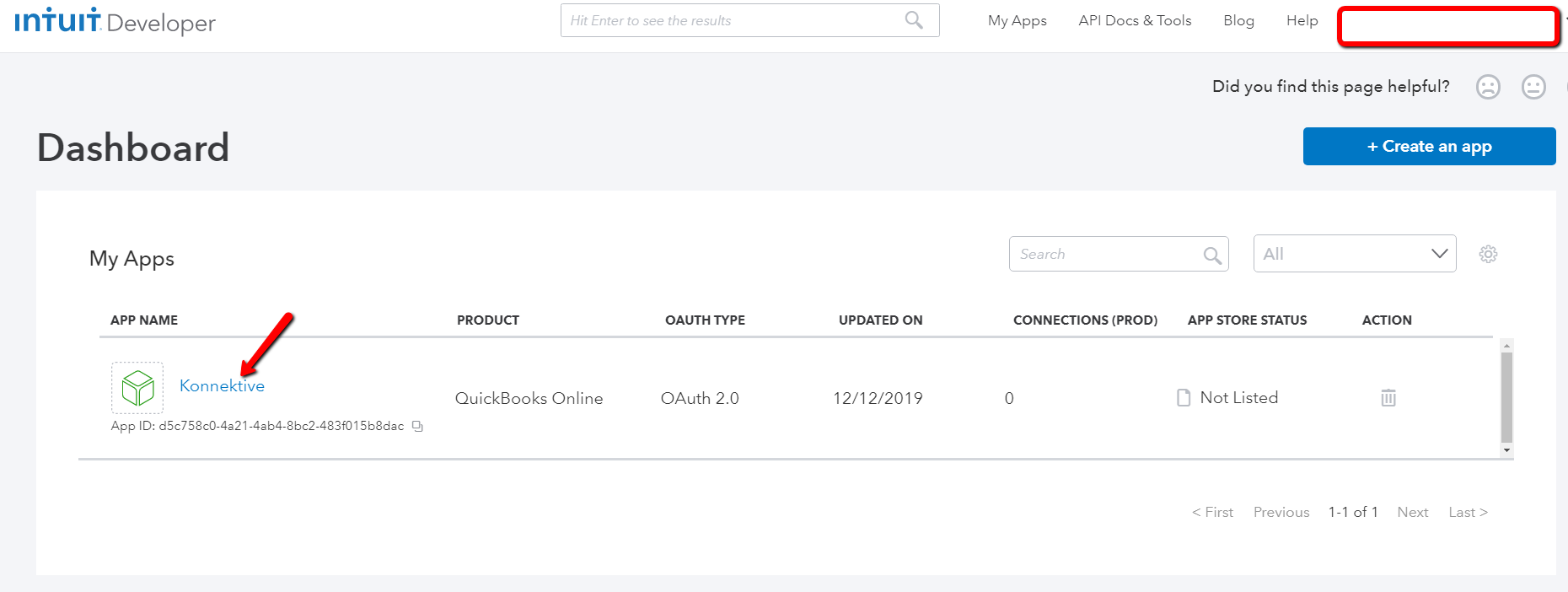
* Click on your existing app or create a new app if you do not have one listed

<figure><img src="https://3790748257-files.gitbook.io/~/files/v0/b/gitbook-x-prod.appspot.com/o/spaces%2FT43PzcNjyZtWby9yrGd3%2Fuploads%2F8eKkeugdr1Gpvwv7EqRj%2Fimage.png?alt=media&#x26;token=87e2e717-ef1b-4195-93c3-3e9336d73229" alt=""><figcaption></figcaption></figure>

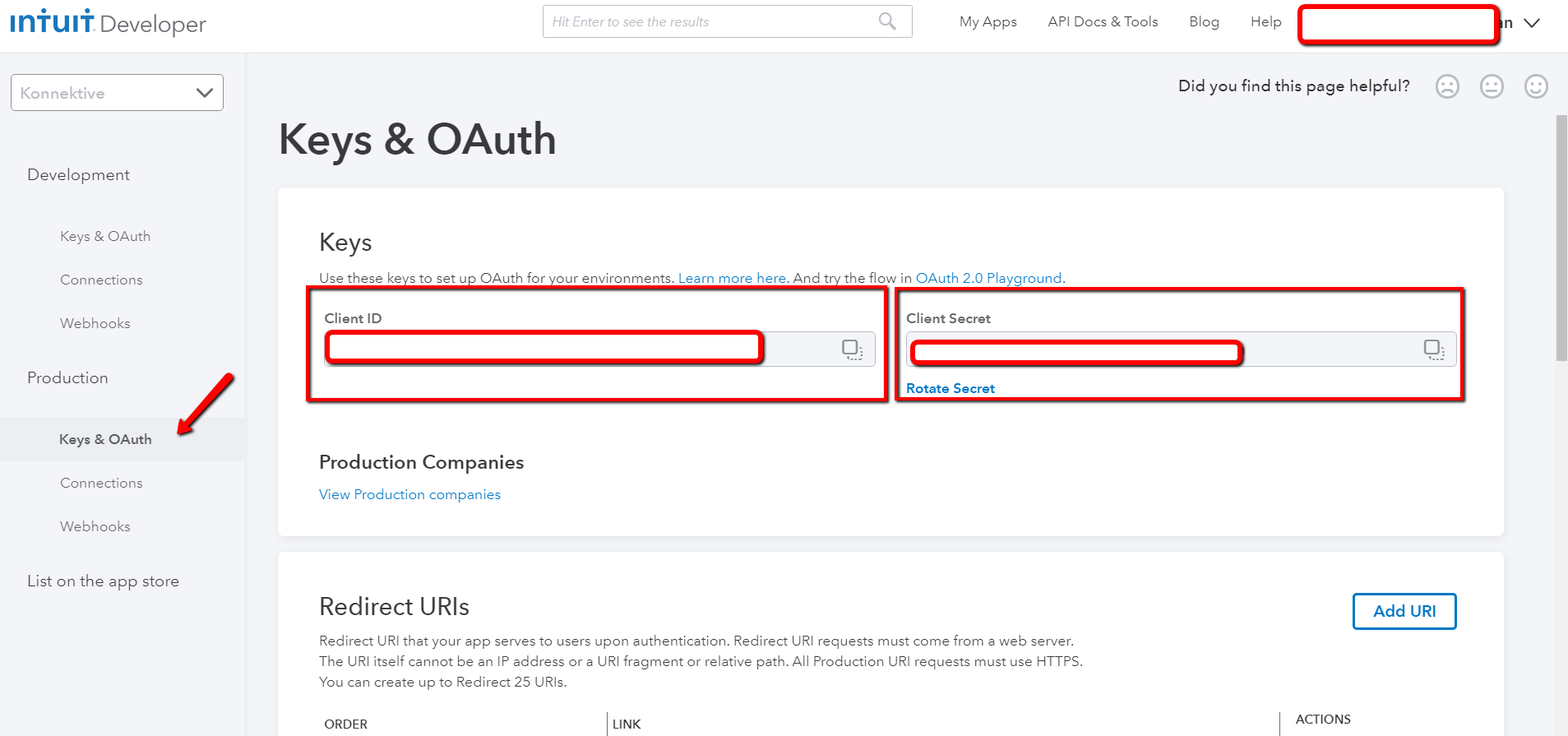
* Navigate to the **Production** section and click on **Keys & OAuth** This will expose your **Client ID** and **Client Secret**
* Note that before displaying Keys, Quick Books may require an app assessment to be completed. Fill this out to the best of your ability.

<figure><img src="https://3790748257-files.gitbook.io/~/files/v0/b/gitbook-x-prod.appspot.com/o/spaces%2FT43PzcNjyZtWby9yrGd3%2Fuploads%2FsKMxMP2VtxDKugjDwhVB%2Fimage.png?alt=media&#x26;token=3b8e6551-1a78-4c7d-a686-42396a6f89c7" alt=""><figcaption></figcaption></figure>

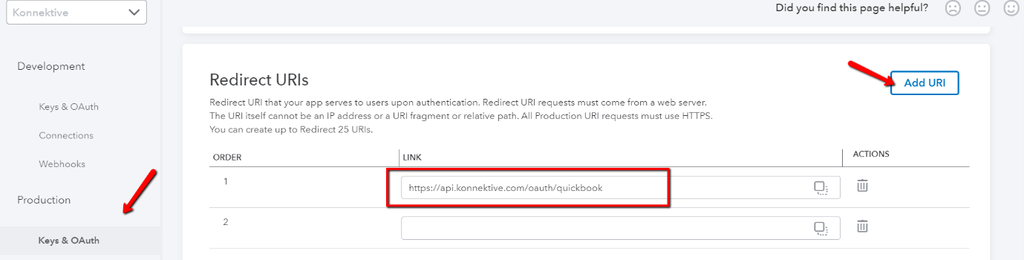
* In the same **Production** Section, Please scroll down to **Redirect URIs** and click **Add URI**. Enter **<https://api.konnektive.com/oauth/quickbook/>**

<figure><img src="https://3790748257-files.gitbook.io/~/files/v0/b/gitbook-x-prod.appspot.com/o/spaces%2FT43PzcNjyZtWby9yrGd3%2Fuploads%2FG14IvFSAoHoNVWVEtrQZ%2Fimage.png?alt=media&#x26;token=caba6dc1-46fd-45a3-b333-c5b80a4387ee" alt=""><figcaption></figcaption></figure>

### Add OBO keys into CRM plugin <a href="#quickbooksonlineplugin-addobokeysintocrmplugin" id="quickbooksonlineplugin-addobokeysintocrmplugin"></a>

Now that you have obtained your Production Keys we can now input them into the CRM Plugin.

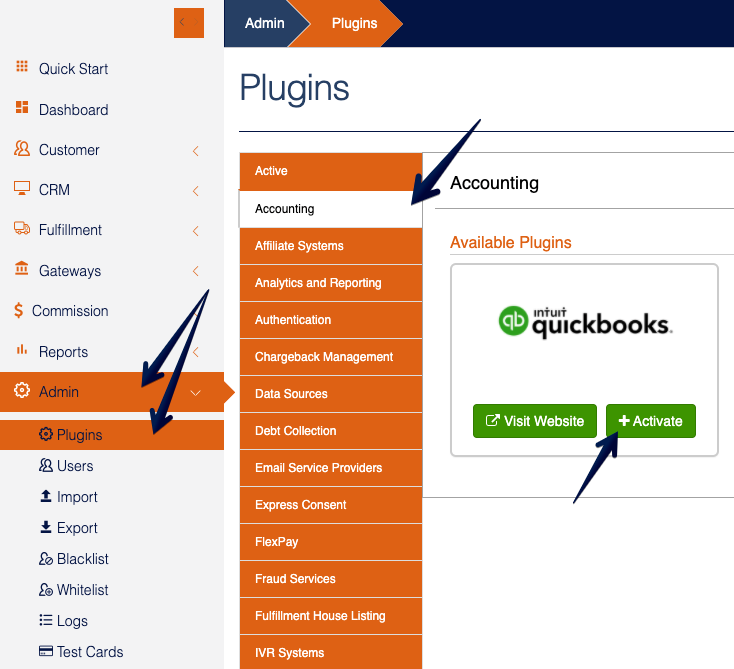
Navigate to **Admin** → **Plugins** → **Accounting**. Select **Quickbooks** and hit the Green **+ button** to add an instance of the plugin.

<figure><img src="https://3790748257-files.gitbook.io/~/files/v0/b/gitbook-x-prod.appspot.com/o/spaces%2FT43PzcNjyZtWby9yrGd3%2Fuploads%2FUERTyZ6sJKSSbOEeKUoG%2Fimage.png?alt=media&#x26;token=450e678b-1b90-4ea6-8d3d-84a796e65059" alt=""><figcaption></figcaption></figure>

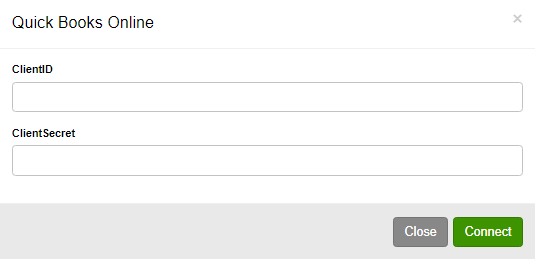
* Enter the **ClientID** and **ClientSecret**

<figure><img src="https://3790748257-files.gitbook.io/~/files/v0/b/gitbook-x-prod.appspot.com/o/spaces%2FT43PzcNjyZtWby9yrGd3%2Fuploads%2FcnaQd5ZMHW4LbHoWxxP0%2Fimage.png?alt=media&#x26;token=cd4c0d4c-9041-4a2e-b73b-f83a4557b966" alt=""><figcaption></figcaption></figure>

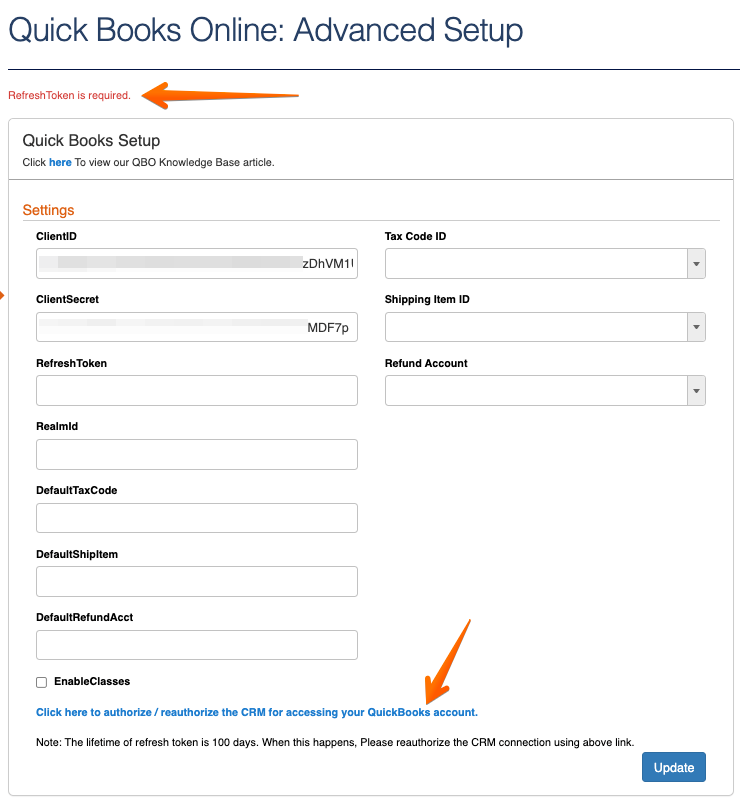
* In the QuickBooks Advanced Setup screen, confirm the **ClientId** and **ClientSecret** are entered then click the link to authorize Checkout Champ to access your app.

<figure><img src="https://3790748257-files.gitbook.io/~/files/v0/b/gitbook-x-prod.appspot.com/o/spaces%2FT43PzcNjyZtWby9yrGd3%2Fuploads%2Fh2U9LM6OsS7mXey23O1P%2Fimage.png?alt=media&#x26;token=e03455c8-bdab-44d0-810c-8ae2cf8fdfc6" alt=""><figcaption></figcaption></figure>

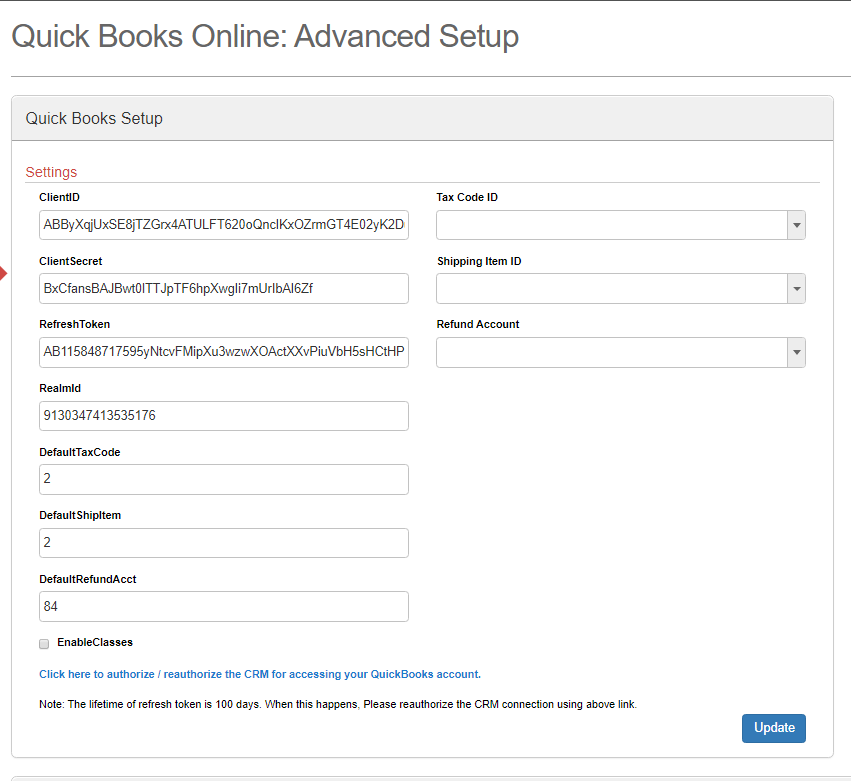
* When the CRM has been Authorized to access your app you’ll notice that the **RefreshToken** field is populated and the **“Refresh token is required”** warning (from the previous screenshot) disappears.

<figure><img src="https://3790748257-files.gitbook.io/~/files/v0/b/gitbook-x-prod.appspot.com/o/spaces%2FT43PzcNjyZtWby9yrGd3%2Fuploads%2F7ZlOx2mhJL8aq6YRQ47g%2Fimage.png?alt=media&#x26;token=93873553-4f07-416e-812b-ae47a0f15e92" alt=""><figcaption></figcaption></figure>

{% hint style="danger" %}
**The lifetime of the refresh token is 100 days. You will need to re-authorize the CRM connection using the link in the Plugin setup.**

ERROR: Please refresh the page. If this issue persist please reauthorize the CRM for accessing your QuickBooks account. ERROR DETAILS: Refresh OAuth 2 Access token with Refresh Token failed. Body: \[{"error\_description":"Token invalid","error":"invalid\_grant"}].
{% endhint %}

Now that the **ClientID, ClientSecret**, and **RefreshToken** fields are populated, feel free to configure the plugin to fit your use case.

**DefaultTaxCode** is required.

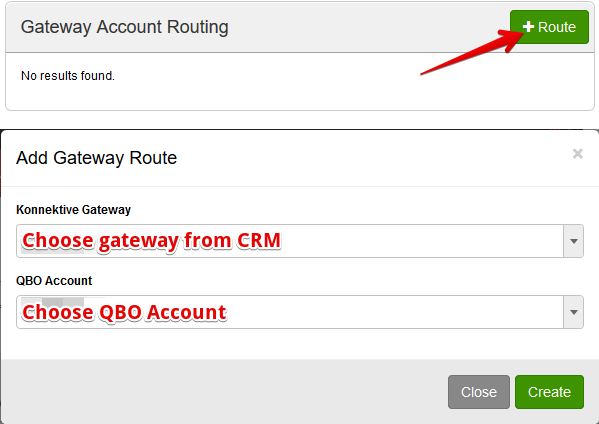
### Apply Gateway Routings <a href="#quickbooksonlineplugin-applygatewayroutings" id="quickbooksonlineplugin-applygatewayroutings"></a>

<figure><img src="https://3790748257-files.gitbook.io/~/files/v0/b/gitbook-x-prod.appspot.com/o/spaces%2FT43PzcNjyZtWby9yrGd3%2Fuploads%2FEt4oxZITi8dsBUqcriqb%2Fimage.png?alt=media&#x26;token=7bf28d7a-d8a2-4750-9d53-5137e1d491c1" alt=""><figcaption></figcaption></figure>

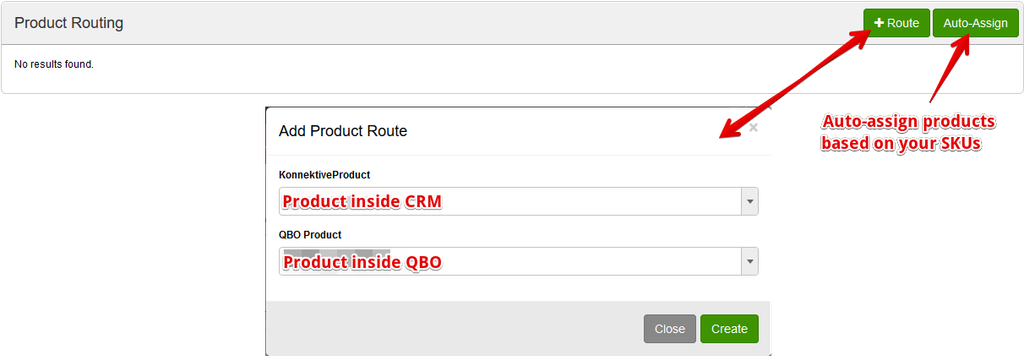
### Apply Product Routings <a href="#quickbooksonlineplugin-applyproductroutings" id="quickbooksonlineplugin-applyproductroutings"></a>

<figure><img src="https://3790748257-files.gitbook.io/~/files/v0/b/gitbook-x-prod.appspot.com/o/spaces%2FT43PzcNjyZtWby9yrGd3%2Fuploads%2FfjopMVgTd9flwdmH6W17%2Fimage.png?alt=media&#x26;token=6dd88bfe-7ec7-4f84-9ac7-52a4584a9e22" alt=""><figcaption></figcaption></figure>