> For the complete documentation index, see [llms.txt](https://help.checkoutchamp.com/llms.txt). Markdown versions of documentation pages are available by appending `.md` to page URLs; this page is available as [Markdown](https://help.checkoutchamp.com/crm/reports/fulfillment-reports/fulfillment-summary.md).
# Fulfillment Summary
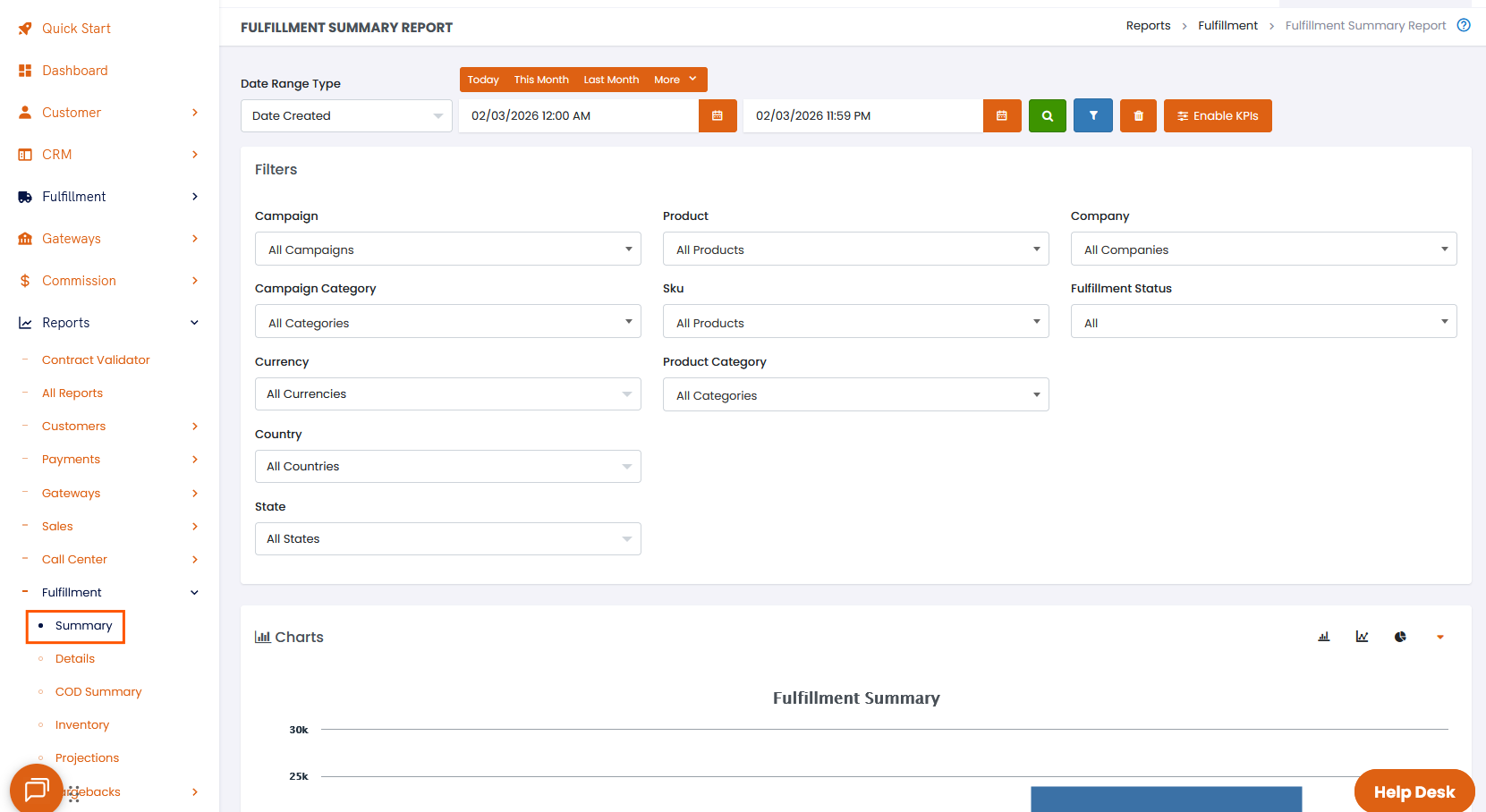
*Select* **Reports >** then *click* on **Fulfillment >** then *click* **Summary:**
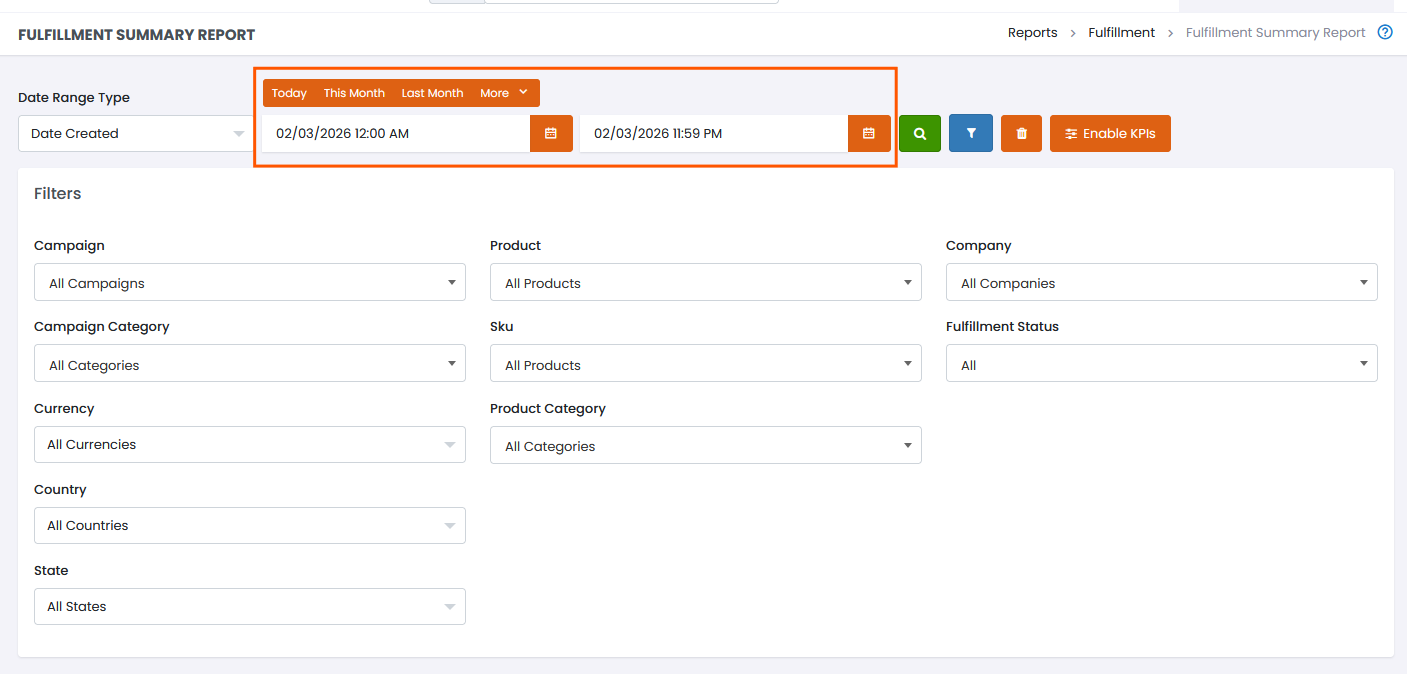
Use the date picker at the top of the report to define the date range for your Summary results:
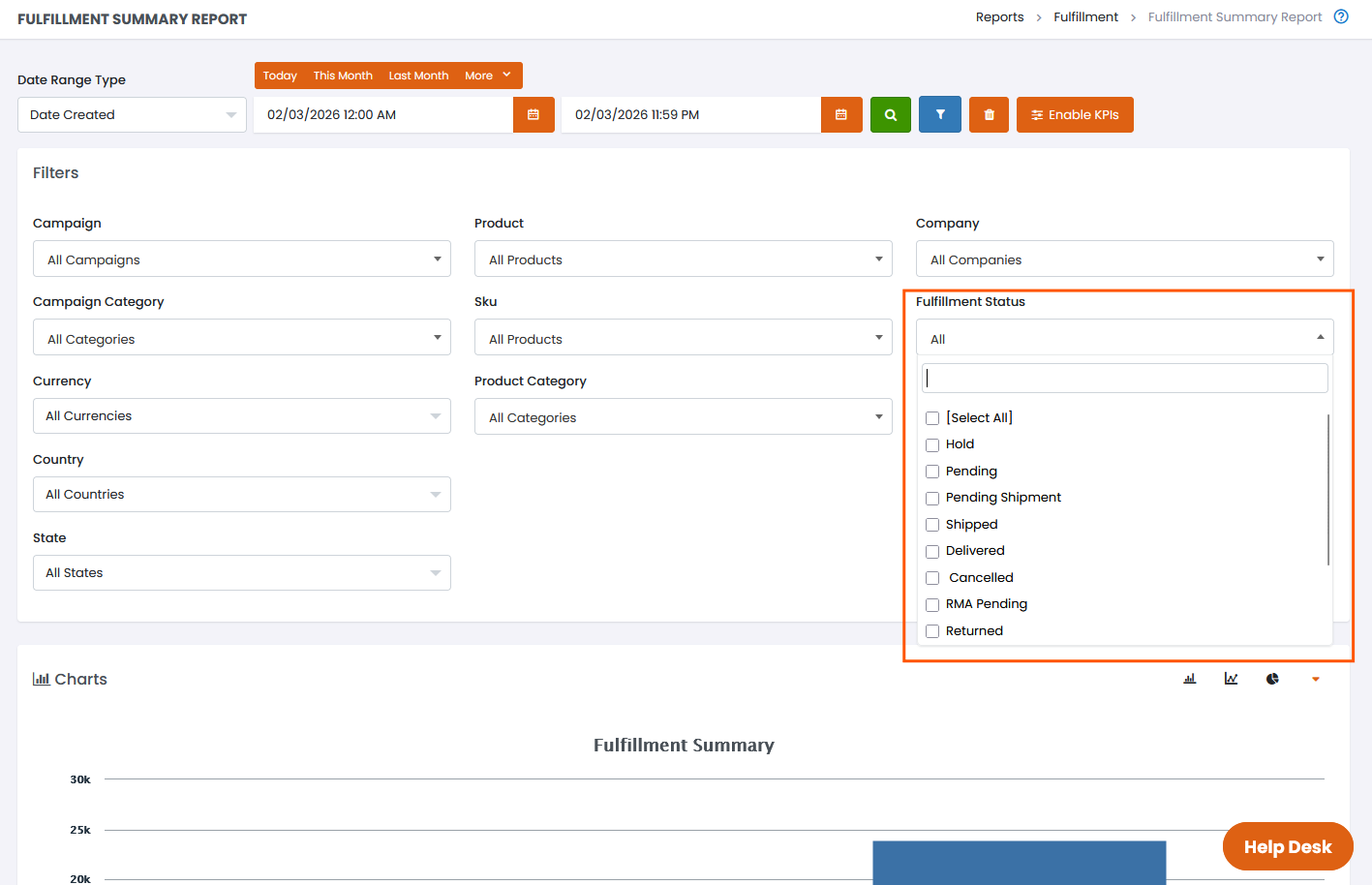
*Click* the **Fulfillment Status** area and a drop-down menu will appear:
* **Hold -** The amount of orders that have not been sent by the fulfillment house.
* **Pending -** The amount of orders that have been received by fulfillment.
* **Pending Shipment**: A tracking number has been assigned to the package and is ready to be picked up by the carrier
* **Shipped -** The amount of orders that have been shipped.
* **Delivered -** The customer has received the order.
* **Cancelled -** The order was canceled.
* **RMA Pending -** Fulfillment is waiting to receive the returned merchandise.
* **Returned -** The order was successfully returned to fulfillment.
* **Failed -** The order Failed to go to fulfillment.
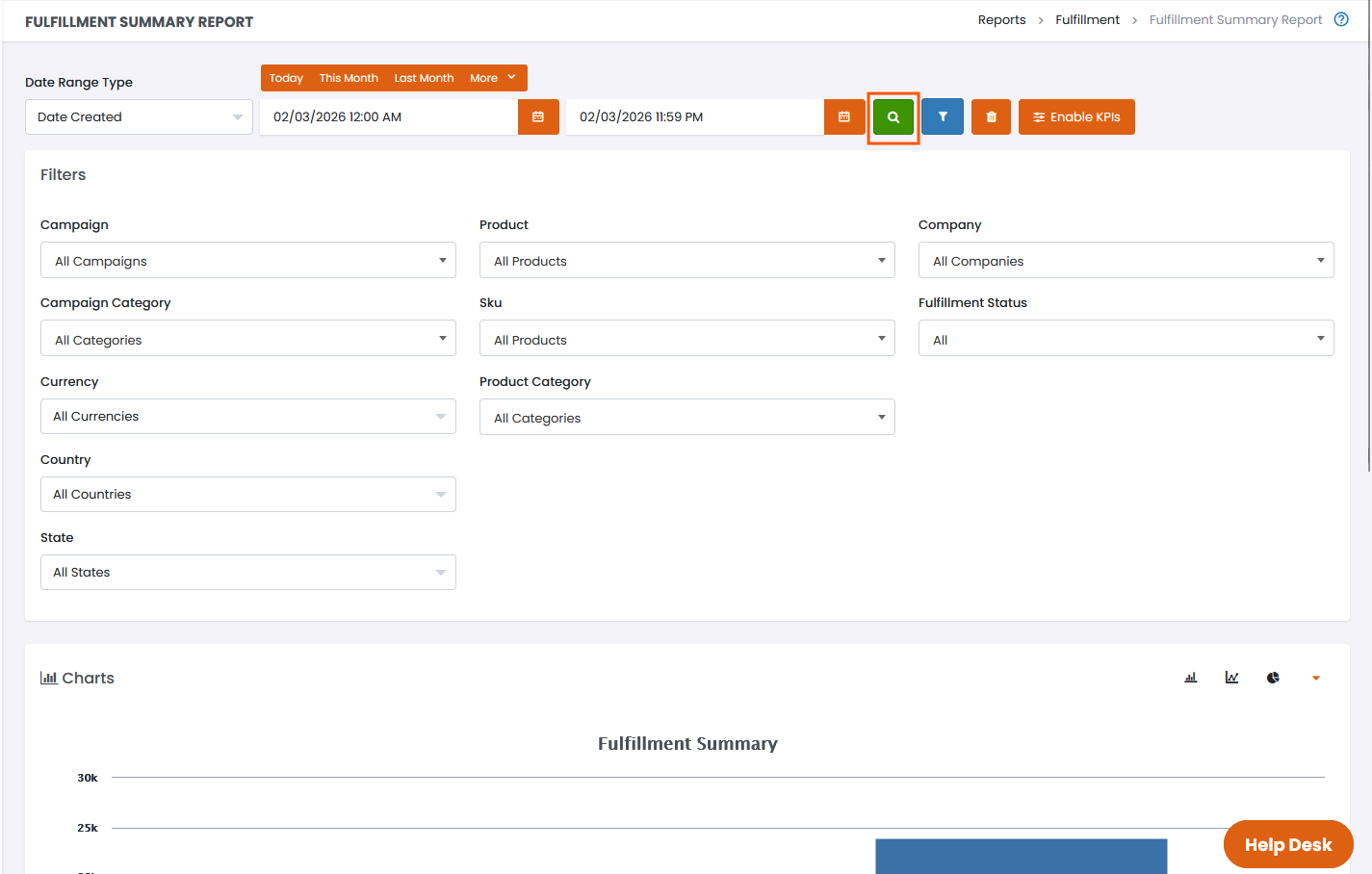
Once you have entered your filters, click the *green* **Magnifying Glass** button to search**:**
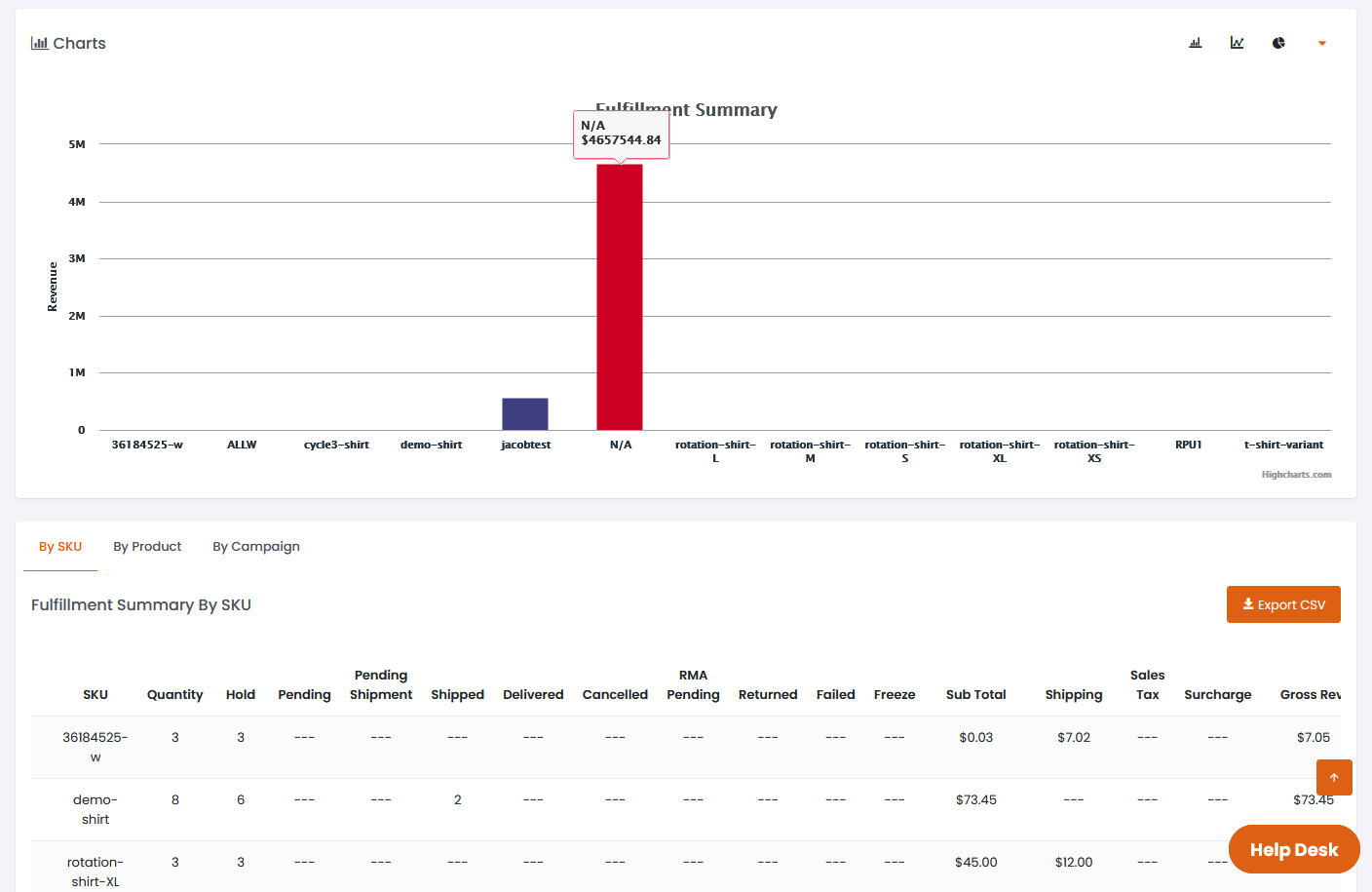
Your results will be diplayed in the **Fulfillment Summary** chart & table below. Click on any of the column headers in the table to sort results per-column:
There are 3 different tabs for the summary report that group the results in different ways:
* By SKU - Each row will be grouped according to the SKU that was assigned to the fulfilled product
* By Product - Each row will be grouped by the specific base product that was fulfilled
* By Campaign - Each row will be grouped by the Campaign in which the fulfilled order was placed
## Column definitions:
* **Date** : Date fulfillment was created
* **Order** : Order Id
* **Customer** : Name of Customer
* **City** : City of the Customer
* **State** : State of the Customer
* **Company** : Name of the Fulfillment House
* **Status** : The current status the order is in (pending, hold, shipped)
* **Tracking #** : Tracking # of the Fulfillment sent from fulfillment house
* **Carrier** : Postal carrier of fulfillment
* **Method** : Method utilized by postal carrier (Express/Priority/1-Day)
* **Shipped** : Date Shipped
* **Delivered** : Date Delivered
* **Items** : Offer/Upsell names of items in fulfillment