> For the complete documentation index, see [llms.txt](https://help.checkoutchamp.com/llms.txt). Markdown versions of documentation pages are available by appending `.md` to page URLs; this page is available as [Markdown](https://help.checkoutchamp.com/funnel-builder/creating-and-editing-funnels-pages/funnel-visualizer-and-page-builder/funnel-visualizer/edit-funnel-settings/payments/mobilepay.md).
# MobilePay
{% hint style="info" %}
MobilePay is supported through Stripe V2 and Adyen V2 gateways
{% endhint %}
***
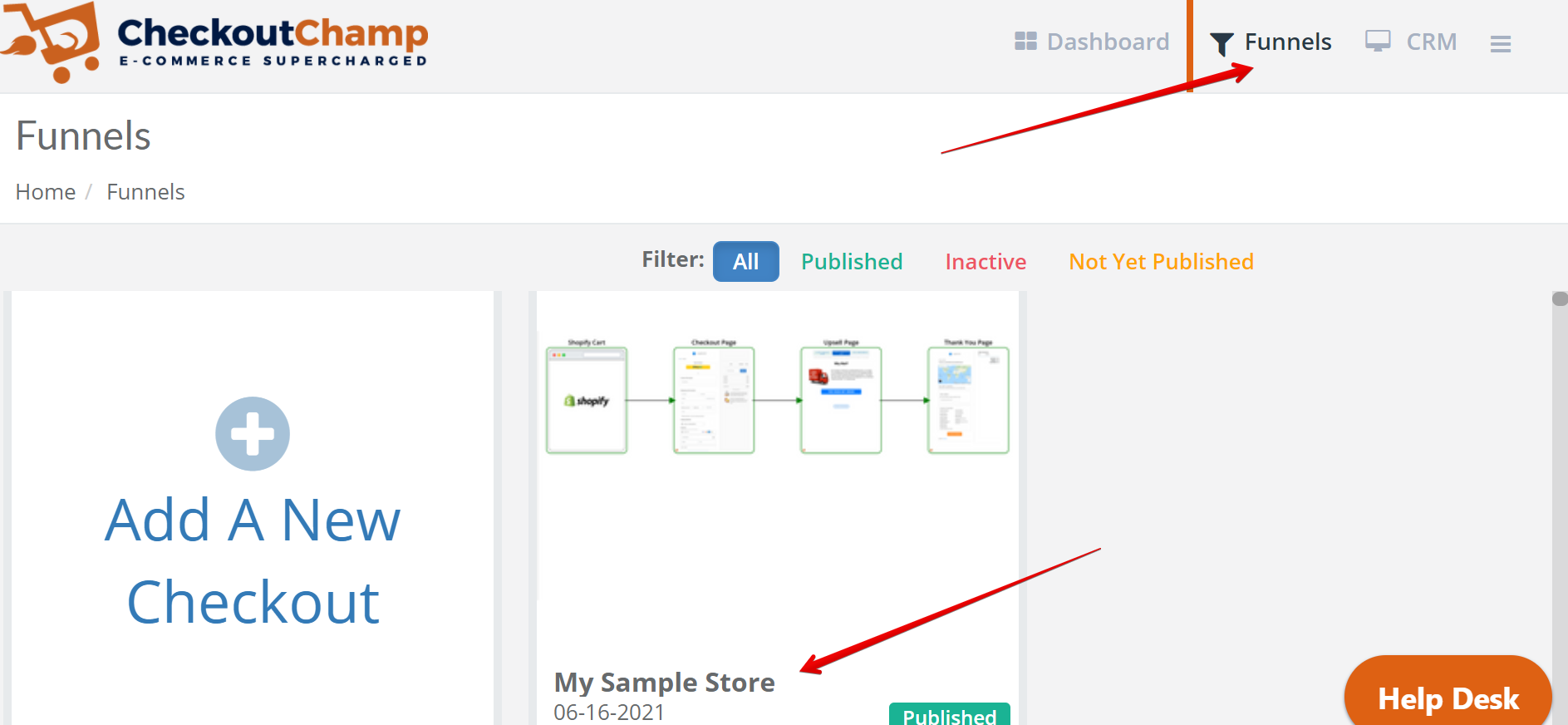
### Step 1: Login and navigate to the funnel to add MobilePay
***
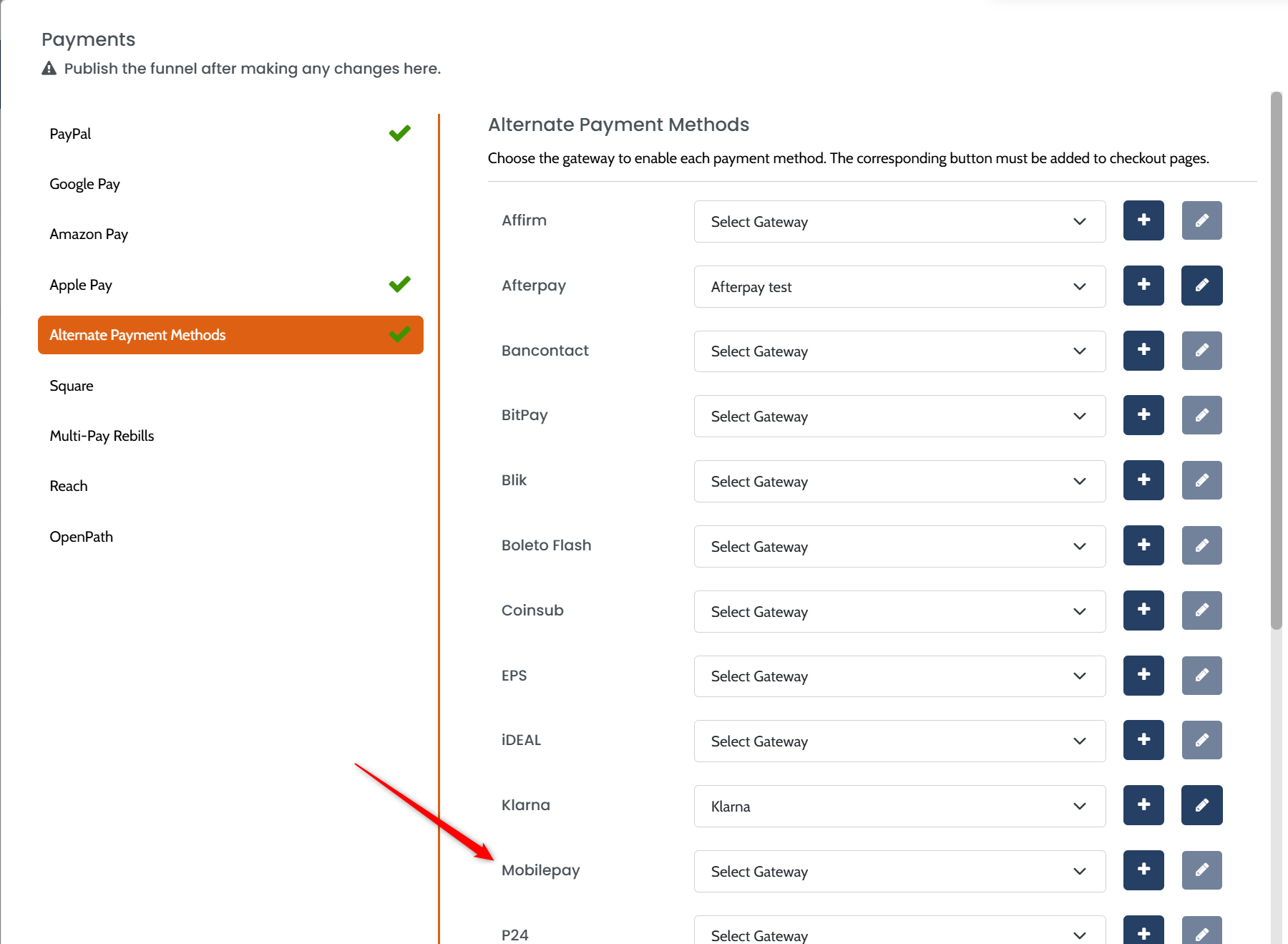
### Step 2: Click the gear button on the top left to open Settings > Payments
***
### Step 3: Select a payment gateway on which to transact
* Choose the gateway for MobilePay. Press the + button to add a new gateway.
***
### Step 4: Save and Continue
***
### Step 5: Edit Checkout page to add the MobilePay button
### Button
#### Customize button size by clicking on the button and dragging the highlighted corners or use the Settings tab for advanced edits. On the Settings tab, be sure the Action is set to *Submit + Route*
### Radio
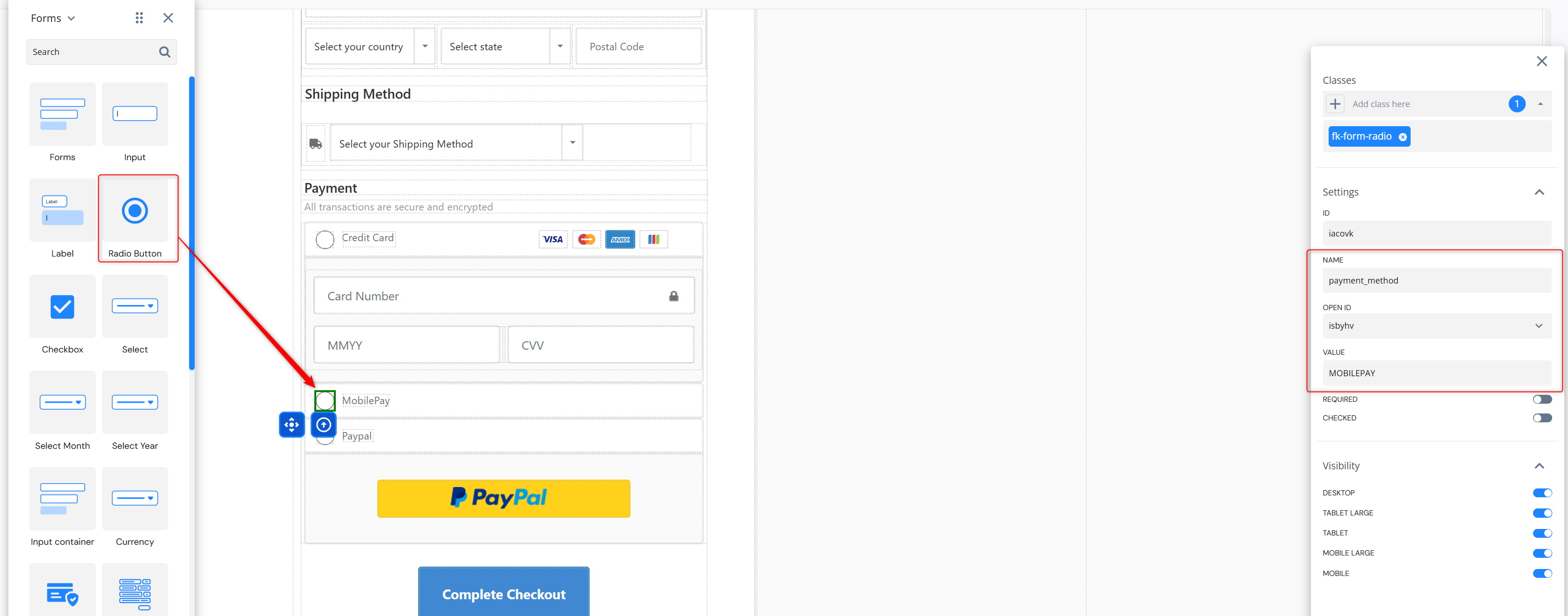
#### Add a form radio button to the page. Design this to your preference.
#### Select the radio button and set Name = payment\_method. This may also be used with the payment toggler by setting the name to “fk-payment-option-toggler“. Set the Value of the radio button to MOBILEPAY (in all caps).
#### Step 6-2(radio): Select the radio button and change the settings so the Name is “payment\_method”. This may also be used with the payment toggler by setting the name to “fk-payment-option-toggler“. Then set the Value of the radio button to MOBILEPAY (in all caps).
####
{% hint style="warning" %}
Use either all buttons or radios for pay source selection. Do not mix the method on the page.
{% endhint %}
***
### Step 6: Save the page. Exit the page builder.
***
### Step 7: On the arrow leaving the checkout page, choose the MobilePay button.
***
### Step 8: Publish. You’re done and ready to test!
{% hint style="warning" %}
Customer info fields are required for this alternate payment method.
{% endhint %}