> For the complete documentation index, see [llms.txt](https://help.checkoutchamp.com/llms.txt). Markdown versions of documentation pages are available by appending `.md` to page URLs; this page is available as [Markdown](https://help.checkoutchamp.com/funnel-builder/creating-and-editing-funnels-pages/funnel-visualizer-and-page-builder/funnel-visualizer/edit-funnel-settings/payments/shop-pay.md).
# Shop Pay
Shop Pay is an accelerated checkout service by Shopify that securely saves payment, billing, and shipping details
{% hint style="warning" %}
Shop Pay is available with Checkout Champ hosted pages only. it is not supported with a direct API integration.
{% endhint %}
{% hint style="danger" %}
Shop Pay does not support rebills
{% endhint %}
***
The Shop Pay checkout workflow is as follows:
1. The shopper presses Shop Pay button on a Checkout Champ Checkout page
2. The shopper is prompted to enter email address
3. The shopper completes the checkout process (using an existing Shop Pay account or creating a new account)
4. The shopper returns to the Checkout Champ site to complete the upsell flow. Upsells also process on Shop Pay (see instructions below - Shop Pay does not support 1-click upsells).
5. The order resides in Checkout Champ and the external Shop Pay store
6. The order syncs to a standard Shopify store if a Shopify plugin is enabled for the funnel campaign
***
### Step 1: Enable external Shop Pay at Shopify
Shopify requires a store specifically for processing external Shop Pay. This is different than a standard Shopify store.
Follow these instructions exactly
{% hint style="warning" %}
The user following the steps above must be a Shopify Admin user with access to Payments and Domains
{% endhint %}
***
### Step 2: Setup the Shop Pay gateway
{% hint style="warning" %}
Do not continue without completing every requirement in Step 1
{% endhint %}
Edit any funnel. Go to **Settings** > **Merchant Accounts** > **Add New Merchant Account**. Choose ShopPay in the gateway list.
Enter the following information:
* **Title** - a value to identify this merchant account
* **store** - the Shopify store url created in Step 1, without https. This should end with myshopify.com.
* **shopID** - obtained in Step 1
* **clientID** - obtained in Step 1
* **adminToken** - obtained in Step 1
* **storefrontToken** - obtained in Step 1
Scroll down to press **Save & Continue**
***
### Step 3: Assign the gateway
Edit any funnel. Go to **Settings** > **Payments** > **Alternate Payment Methods**. Scroll down to ShopPay. Select the gateway from Step 2.
Press **Save & Continue**
***
### Step 4: Add Shop Pay button to checkout page
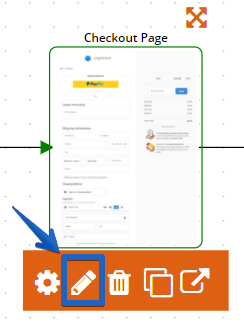
Edit any Checkout page in the funnel. Go to **Blocks Menu** > **Buttons** > find **ShopPay**. Drag the button onto the page. Adjust button styles as desired.
**Save**
Exit the page builder
Notes:
1. Only 1 ShopPay button is allowed on a page
2. Button height can be changed in the page builder but Shopify forces a fixed height on the live page.
***
### Step 5: Route the Shop Pay button
On the arrow leaving the Checkout page, choose the ShopPay button for navigation
***
### Step 6: Upsell pages
Shop Pay does not support 1-click upsells. Shoppers must return to Shop Pay to purchase an upsell. There is no need to place a Shop Pay button on an Upsell page. Any standard button that submits the page will trigger the Shop Pay workflow again. The standard button is replaced with a Shop Pay button at time of page load.
It is important to route Upsell page buttons using standard functionality.
***
### Step 7: Publish
{% hint style="info" %}
It is important to assign the funnel the domain registered with Shopify in Step 1. Follow the [Domain Configuration Guide](/funnel-builder/creating-and-editing-funnels-pages/domain-configuration.md).
{% endhint %}
Publish the funnel
You're done and ready to test!