> For the complete documentation index, see [llms.txt](https://help.checkoutchamp.com/llms.txt). Markdown versions of documentation pages are available by appending `.md` to page URLs; this page is available as [Markdown](https://help.checkoutchamp.com/funnel-builder/creating-and-editing-funnels-pages/funnel-visualizer-and-page-builder/page-builder-2.0/building-blocks/product-blocks.md).
# Product Blocks
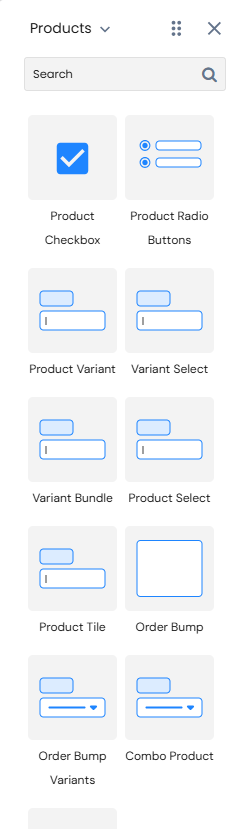
Inside the Products menu within the Building Blocks you have several options to choose from to add to your pages.\
\
The Checkbox and Radio Button options are also available under the [Forms](/funnel-builder/creating-and-editing-funnels-pages/funnel-visualizer-and-page-builder/page-builder/building-blocks/form-blocks.md#formblocks-form) menu, but only the Product variation of these elements will allow you to tie a product to the checkbox or radio button.
* [Product Checkbox](#productblocks-productcheckbox)
* [Product Radio Buttons](#productblocks-productradiobuttons)
* [Variant Selection](#productblocks-variantselection)
* [Product Selection](#productblocks-productselection)
* [Product Tile](#productblocks-producttile)
* [Order Bump](#productblocks-orderbump)
***
### Product Checkbox
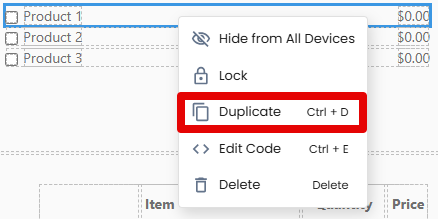
Dragging this Block onto the page will add three checkboxes to the page. You can remove any extras if you don’t need them, or if you need more you can simply duplicate one of the existing ones using the button highlighted below.
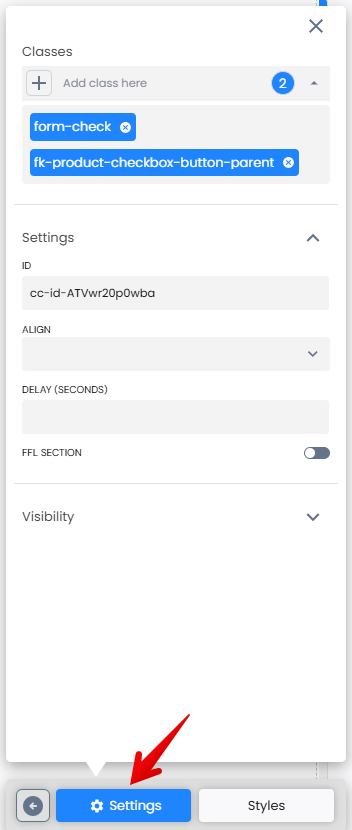
To set a product or product variant to the checkbox, click on the checkbox and open the element’s settings within the Style Manager. You can also set a checkbox to be preselected when the page loads by enabling the Checked option.
***
### Product Radio Buttons
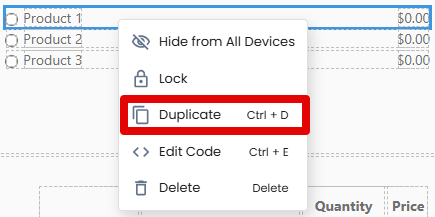
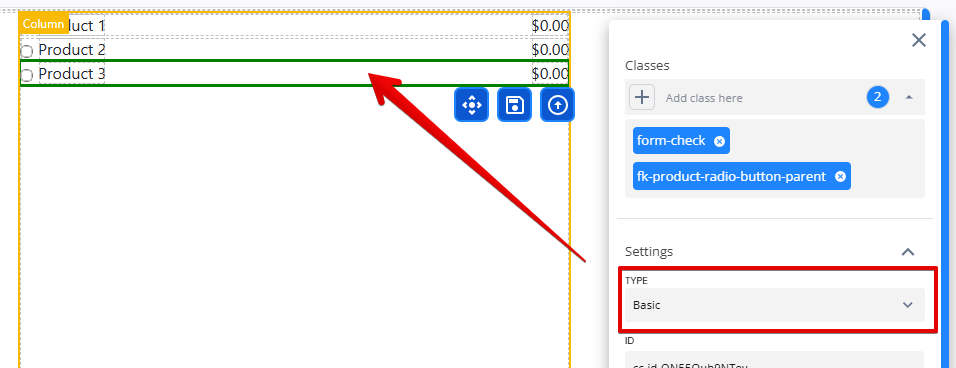
Dragging this Block onto the page will add three radio buttons to the page. You can remove the extra radio buttons if you don’t need them, or if you need more you can simply duplicate one of the existing ones using the button highlighted below.
To set a product or product variant to the checkbox, click on the radio button and open the element’s settings within the Style Manager. You can also set a radio button to be preselected when the page loads by enabling the Checked option.
### Product Radio Type
You may choose between two types of Product Radio elements in the element settings: Basic or Advanced
Basic product radios contain no style and require clicking directly on the radio to select it.
Advanced product radios are surrounded by their own labels. This allows the user to click anywhere in the label to select that radio. You may style the label as needed to give it more of a product section look. You may also hide the product radio as clicking anywhere in the label will select the radio.
***
### Variant Selection
There are two premade variant selection blocks that you can drag onto your page where you can allow the customer to choose from multiple variants of a single product.
To apply a product to the element, you will click on the empty space within the element and then open the element’s settings
After you apply the product, the variant options will be available within the dropdown menu. If you don’t have three variants, you can remove any extras by clicking the element and then the Trash Can on the element tool bar.
***
### Product Selection
This is a premade element that allows you to quickly drag a button and image onto the page.
To apply a product to the element, click on the button and then open the element’s settings to choose the product and button action.
***
### Product Tile
Dragging this Block onto the page will add three product tiles with radio buttons to the page. You can remove the extra tiles if you don’t need them, or if you need more you can simply duplicate one of the existing ones using the button highlighted below.
You can adjust the formatting within the [Style Manager](/funnel-builder/creating-and-editing-funnels-pages/funnel-visualizer-and-page-builder/page-builder-2.0/settings-and-style-manager.md) and swap out the images for your own product images.
To apply products to each option, click on either the radio button or the normal button within each tile and then open the element’s settings to choose the product. You can also set a radio button to be preselected when the page loads by enabling the Checked option.
***
### Order Bump
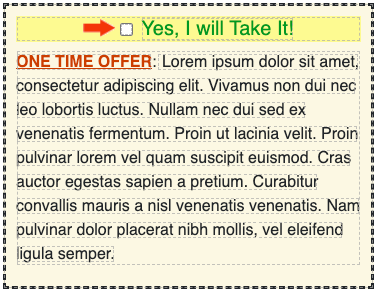
This is a premade element that you can drag to your page to offer extra products for the customer to purchase before submitting their payment on the checkout page.
You can adjust the formatting and the text within the element within the [Style Manager](/funnel-builder/creating-and-editing-funnels-pages/funnel-visualizer-and-page-builder/page-builder-2.0/settings-and-style-manager.md).
To set a product or product variant to the checkbox, click on the checkbox and open the element’s settings within the Style Manager. You can also set a checkbox to be preselected when the page loads by enabling the Checked option.
***
### Two Way Sub Subscription
This is a premade element that you can drag to your page to offer two way subscribe and save options. These elements use the subscribe & save profiles set up in the campaign in the CRM.
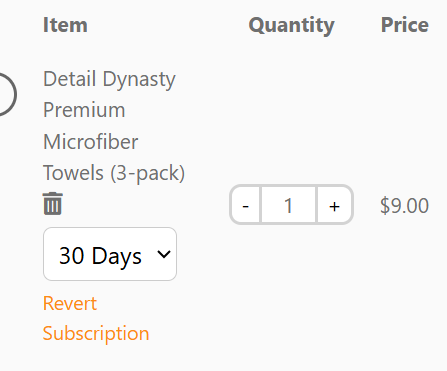
This element just needs to be applied to the page and styled as needed. This element can be used to convert a one-time offer to a subscription and vice versa. Subscripton offers used on this element are taken from [Subscribe & Save Profiles](/crm/crm-setup/campaign-setup/subscribe-and-save-profiles.md) set in campaigns.
When the button to upgrade to a subscription is pressed the element will be hidden on the page. Any items that are shown in the order summary will show a revert back so the client can easily switch the product back to one-time.