> For the complete documentation index, see [llms.txt](https://help.checkoutchamp.com/llms.txt). Markdown versions of documentation pages are available by appending `.md` to page URLs; this page is available as [Markdown](https://help.checkoutchamp.com/funnel-builder/creating-and-editing-funnels-pages/funnel-visualizer-and-page-builder/page-builder-2.0/layer-manager/hiding-and-revealing-elements.md).

# Hiding and Revealing Elements

The layer manager can be used in powerful ways to optimize a page layout for different devices.

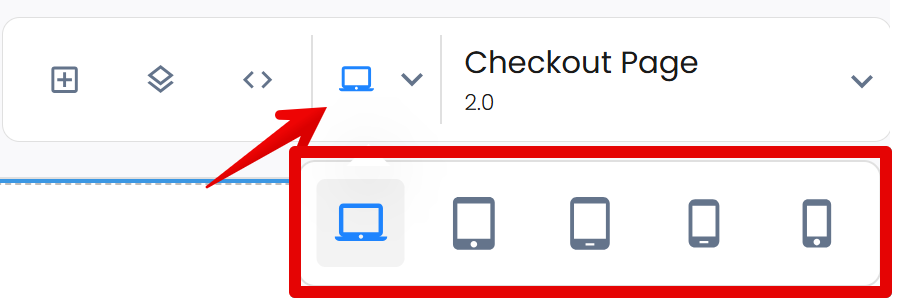
For example, you could have a large, wide image displayed on desktop, but hide it on mobile devices and instead reveal a smaller, narrower design for mobile. This feature allows you to create a different visual experience based on screen size using the built-in viewports (Desktop, Large Tablet, Tablet, Large Mobile and Mobile).

<figure><img src="/files/bIPzeQvLzlA5GqiEDeLy" alt="" width="375"><figcaption></figcaption></figure>

#### Here’s how you can do it. <a href="#hidingandrevealingelements-hereshowyoucandoit" id="hidingandrevealingelements-hereshowyoucandoit"></a>

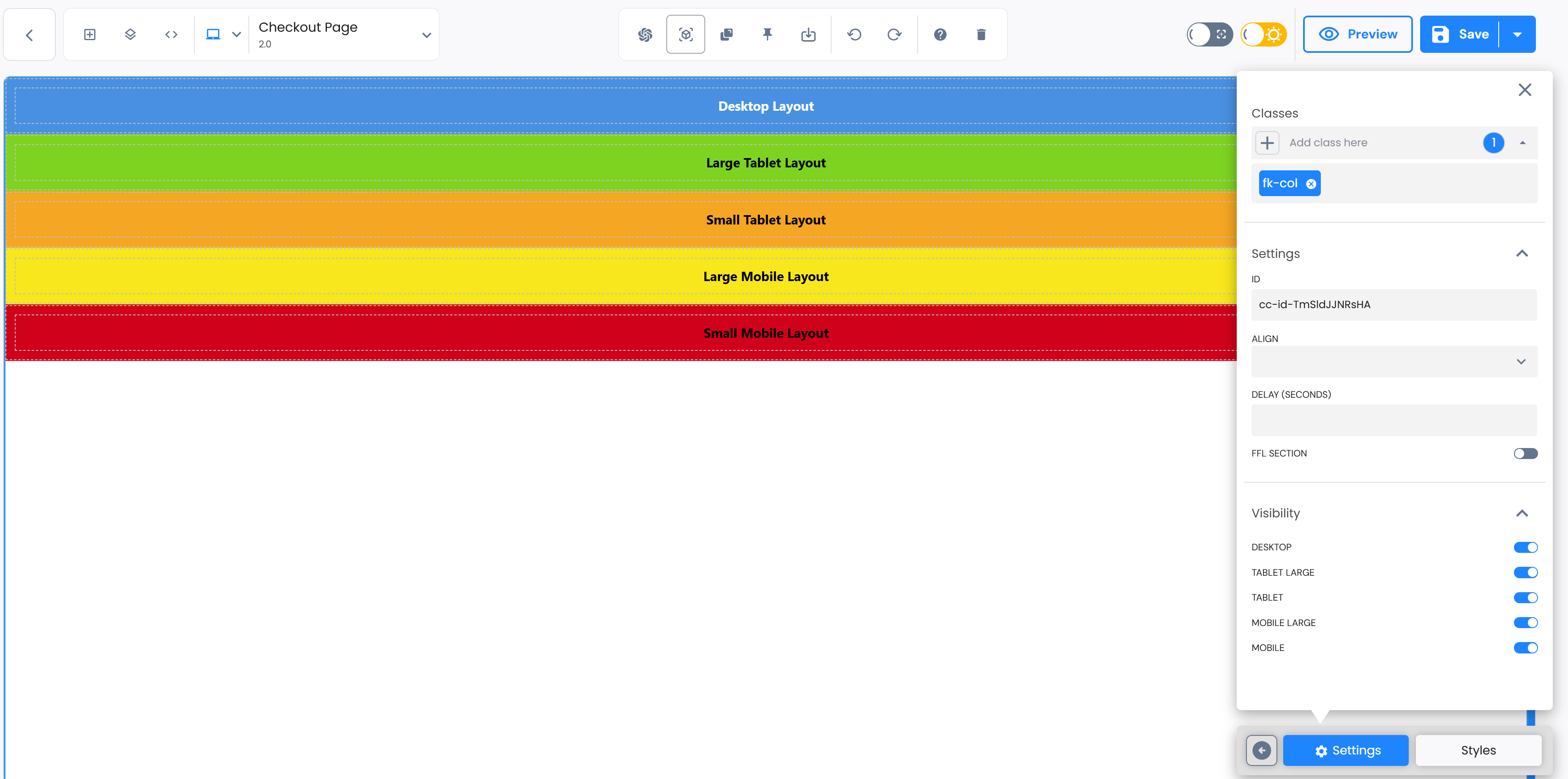
The initial screen in the builder is the Desktop layout. Start by adding all the different viewport layouts onto the builder. In this screenshot you can see, we have a different layout for each viewport available.

<figure><img src="/files/gQcu3CoyMI9IxouEnxNH" alt=""><figcaption></figcaption></figure>

After initially adding each element, navigate to the layer manager in the top left hamburger menu.

<figure><img src="/files/MXc5oPLRK81dzenrDrEK" alt=""><figcaption></figcaption></figure>

Then you select each layout for the smaller devices. After selecting each element, it will be highlighted in the layer manager as seen below.

<figure><img src="/files/m9HogrED2TDxQ7Xr9M6D" alt=""><figcaption></figcaption></figure>

From there, click the “eye” icon to hide these elements intended for smaller devices. You should notice they will disappear while on the desktop view now. (Note: they will remain hidden until un-hidden)

<figure><img src="/files/PAGtNcvetL29DiUTm0Xo" alt=""><figcaption></figcaption></figure>

When hiding elements, keep in mind the builder cascades downward. So if you hide an element on desktop, it is hidden on all the remaining viewports below desktop (unless you make that element visible on one of the smaller viewports). Using a combination of the viewports and layers, you can show and hide elements across all 5 screen sizes.
---

# Agent Instructions
This documentation is published with GitBook. GitBook is the documentation platform designed so that both humans and AI agents can read, navigate, and reason over technical content effectively. Learn more at gitbook.com.

## Querying This Documentation
If you need additional information that is not directly available in this page, you can query the documentation dynamically by asking a question.

Perform an HTTP GET request on the current page URL with the `ask` query parameter, and the optional `goal` query parameter:

```
GET https://help.checkoutchamp.com/funnel-builder/creating-and-editing-funnels-pages/funnel-visualizer-and-page-builder/page-builder-2.0/layer-manager/hiding-and-revealing-elements.md?ask=<question>&goal=<endgoal>
```

`ask` is the immediate question: it should be specific, self-contained, and written in natural language.
`goal` is optional and describes the broader end goal you are ultimately trying to accomplish on behalf of the user. GitBook uses it to tailor the answer towards what is most useful for that goal.

The response will contain a direct answer to the question and relevant excerpts and sources from the documentation.

Use this mechanism when the answer is not explicitly present in the current page, you need clarification or additional context, or you want to retrieve related documentation sections.
