> For the complete documentation index, see [llms.txt](https://help.checkoutchamp.com/llms.txt). Markdown versions of documentation pages are available by appending `.md` to page URLs; this page is available as [Markdown](https://help.checkoutchamp.com/funnel-builder/creating-and-editing-funnels-pages/funnel-visualizer-and-page-builder/page-builder-2.0/page-building-tips/duplicating-pages-and-funnels.md).
# Duplicating Pages & Funnels
There are multiple ways to create duplicates of your pages in Checkout Champ. You can also duplicate entire funnels if you have a more intricate structure you don’t want to manually recreate. Here’s How:
### Duplicate Button:
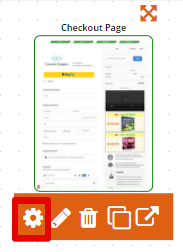
In Checkout Champ, look for this button to duplicate pages in the visualizer. You can also use the same button inside the builder to duplicate individual elements.
***
### Share ID’s:
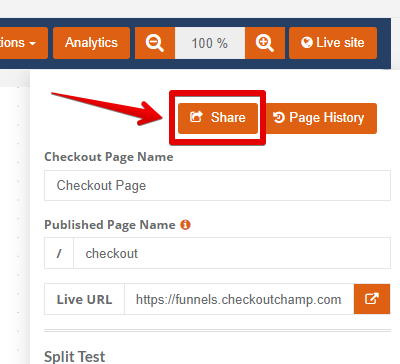
What if you have multiple funnels and you want to copy a page in one funnel to another? In this case, select the **gear** icon on the page settings and then select **Share.**
Then copy the **Share ID** to your clipboard.
Now go to your new funnel and drag a new page onto the visualizer. Before selecting a template, click Share in the top right corner. Then paste the Share ID in the space below.
Click **Import** and allow the app time to import the page. (This may take a few seconds longer than usual) Sometimes, the Thumbnail of the page may still be blank after importing. To check if it successfully imported, edit the page and make sure it imported correctly. If it did, save the page and exit the builder.
***
### Duplicate Funnels via Share Id:
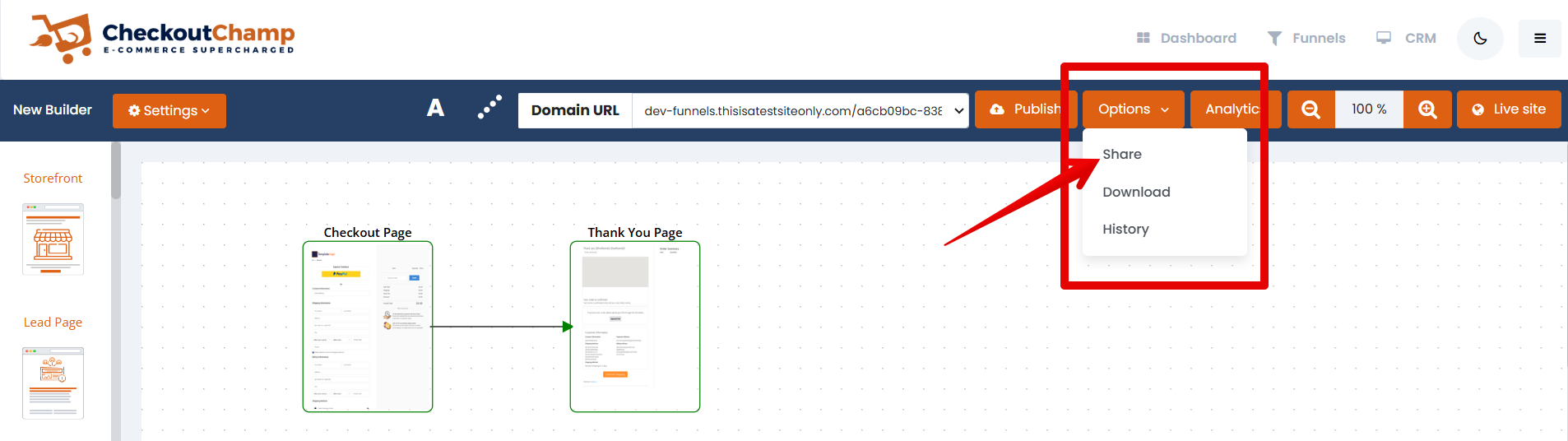
If your funnel looks something like this, you will want a fast way to duplicate all your pages.
To do that, select the **Options** button in your original funnel and then go to **Share**. Copy the **Share ID** just like for duplicating a single page.
Then go to your new funnel and click on **Options** again, then **Share**, and then **Paste** and **Impor**t your Funnel via **Share ID**.