> For the complete documentation index, see [llms.txt](https://help.checkoutchamp.com/llms.txt). Markdown versions of documentation pages are available by appending `.md` to page URLs; this page is available as [Markdown](https://help.checkoutchamp.com/funnel-builder/creating-and-editing-funnels-pages/funnel-visualizer-and-page-builder/storefront/customization/blocks.md).
# Blocks
Blocks are premade sections that can be added to a page. Each of these can be styled in different ways depending on the block chosen.
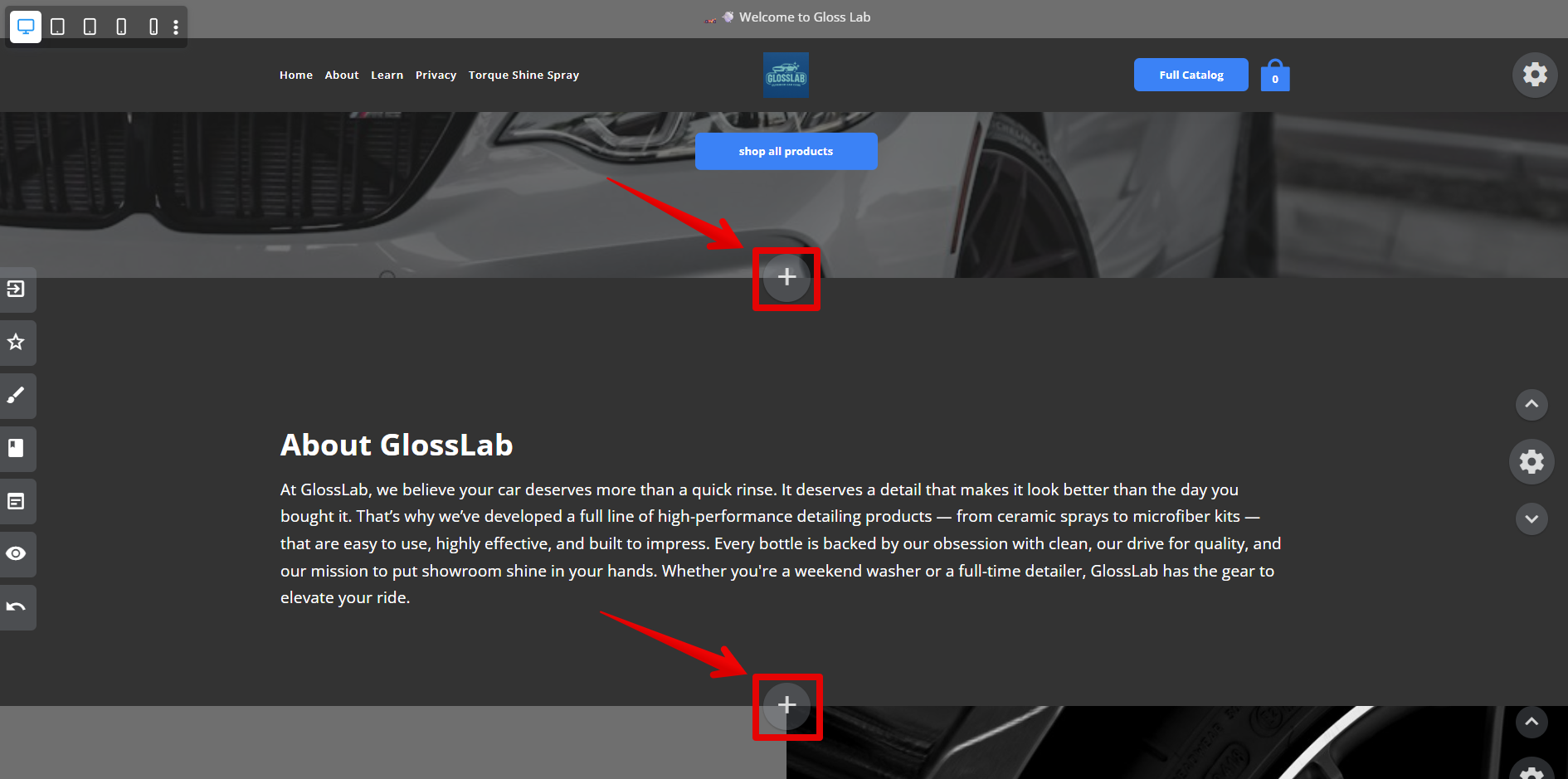
To add a new block, find and click the add button beneath an existing block.
After clicking a modal will open and a list of blocks to show. There you may filter by category to quickly find what you need. Once you've found a block you would like to use, click the block to add it to the page.
Edit
To edit a block, click the setting button on the right side of the block
Move
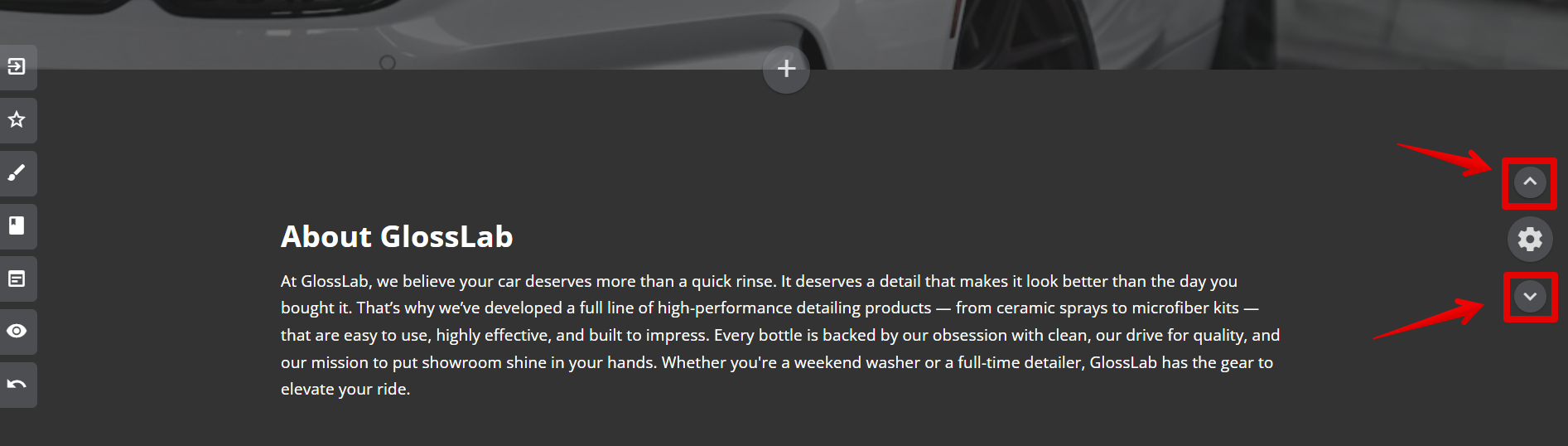
To move a block, click on the up or down arrow to move a block up one section or down one section
Duplicate and Delete
If you would like to delete or duplicate a block, open the block setting seen on the right-hand side. At the bottom of the modal open the dropdown labelled "Advanced Settings". The options to duplicate and delete will be available.
Visibility
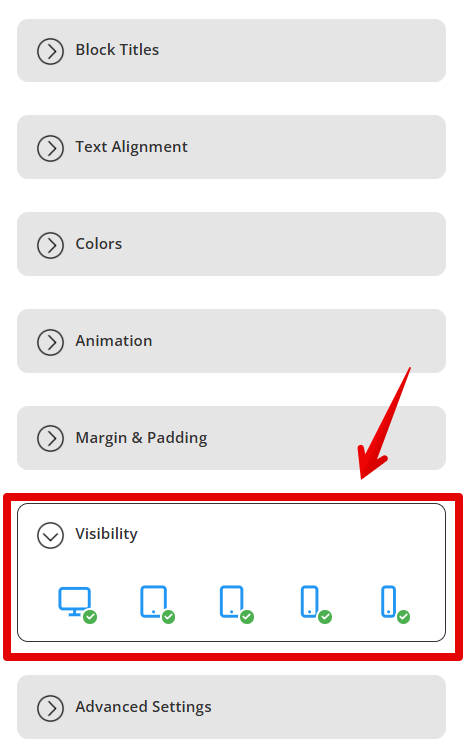
If you would like to control the visibility of a block, open the block setting seen on the right-hand side. Near the bottom of the modal open the dropdown labelled "Visibility". The options to choose devices will be available. Click the different device icons to hide or show the block on the desired device types.