> For the complete documentation index, see [llms.txt](https://help.checkoutchamp.com/llms.txt). Markdown versions of documentation pages are available by appending `.md` to page URLs; this page is available as [Markdown](https://help.checkoutchamp.com/crm/gateway-setup/gateway-integrations/pagbrasil.md).
# PagBrasil
{% hint style="info" %}
This gateway supports payments by credit card, Boleto Flash, PEC Flash, and PIX
More information about the checkout flow for each option can be found at
{% endhint %}
{% hint style="info" %}
Customer tax Id is required for all transactions. For a new sale pass the Id using the custom5 parameter
{% endhint %}
{% hint style="info" %}
Recurring payments are disabled by default at PagBrasil. If you want to use recurring payments, please contact PagBrasil for further information. Recurring payments are supported on credit cards only.
{% endhint %}
{% hint style="danger" %}
PagBrasil supports only full refunds. Partial refunds will be rejected.
{% endhint %}
{% hint style="info" %}
Installments can be passed to PagBrasil using the custom4 parameter on Import Order API. Send a number between 1 and 12.
If using CheckoutChamp pages then this can be accomplished with either an input or a select.
{% endhint %}
**Step 1:**
Go to **Merchants** → **Gateway Integrations** and activate the PagBrasil tile with the “**+ Activate**” button
**Step 2:**
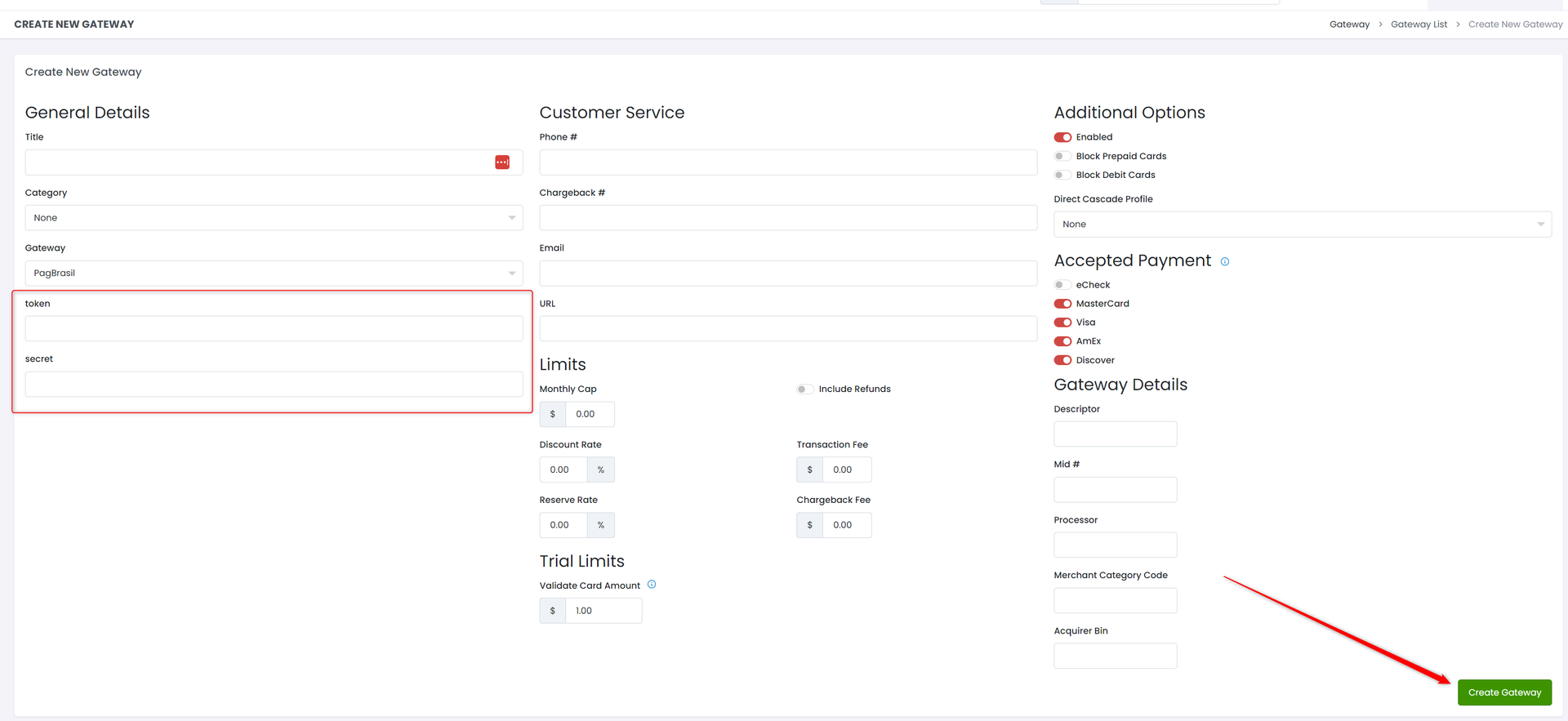
Enter the **token** and **secret** from your PagBrasil account.
Choose to use the PagBrasil test server. Be sure to uncheck **useTestServer** before starting live traffic.
Press the green “Create Gateway” button to create your PagBrasil gateway.
**Step 3:**
Apply the gateway to your offers and upsells within the campaign.
**Step 4:**
Implement the following requirements for each of the payment options when using the [Import Order API](https://apidocs.checkoutchamp.com/#275a54c6-b4b0-414c-819b-7387e9a81f58)
* Credit cards
* Pass full card information as documented in Import Order API
* custom5 = \[consumer’s tax id]
* Boleto Flash
* paySource = PREPAID
* prepaidType = PAGBRASIL\_BOLETO
* custom5 = \[consumer’s tax id]
* After successful checkout the Boleto consumer URL is available in CRM in the Transactions panel on the customer and order detail pages (Show Txn Additional Data)
* PEC Flash
* paySource = PREPAID
* prepaidType = PAGBRASIL\_PEC
* custom5 = \[consumer’s tax id]
* After successful checkout the PEC consumer data is available in CRM in the Transactions panel on the customer and order detail pages (Show Txn Additional Data)
* PIX
* paySource = PREPAID
* prepaidType = PAGBRASIL\_PIX
* custom5 = \[consumer’s tax id]
* Ensure that the checkout page supports [basic 3DS redirect functionality](/crm/gateway-setup/direct-api-3ds-instructions.md) so the QR code is automatically displayed to the consumer
**Step 5:**
Login to your PagBrasil account
Go to Account → Settings → Main
Set IPN URL to ****
This step is required to properly receive completed payment notifications from PagBrasil